If you shoot video on your iPhone and it never looks as good as what you see online, the reason is probably one thing: you are not shooting in Apple Log (or Apple Log 2). Here is how to fix that, step by step.
What you need first
Apple Log only works on iPhone 15 Pro, 16 Pro, and iPhone 17 Pro and of course any newer Pro models in the future. There are no workarounds. It is a hardware thing. Regular iPhones can't shoot Log.
For the best results, download the Blackmagic Camera app. It is free and gives you way more control than the native iPhone camera app. But it's not a must — if you're going for maximum control just get the Blackmagic app!
The right settings in Blackmagic Camera
Open the app and go into Settings. Here is exactly what to set:
Codec: HEVC (H.265)
Select HEVC (H.265). ProRes 422 gives you even more flexibility in post but the file sizes are huuuuge. I would only choose ProRes if I needed to shoot a short film on my phone or some client work. For everything else (vlogs, social media content, YouTube videos) H.265 is fine!

Resolution
4K (or "Open Gate" if your iPhone allows it. This will give you the full sensor readout in 4:3 aspect ratio)

Bit rate
Maximum

Color space
This is the key setting. On iPhone 17 Pro you will see Apple Log HDR and Apple Log 2 HDR. Ignore the HDR label. Just pick Apple Log 2 if available. If you have an older Pro model, Apple Log 1 works great too. Same dynamic range, very similar results.

Turn HDR video off
Please, just do it. I see so many beginners using HDR because they think it looks better but ultimately you are only giving your audience a retina burn-in.

Stabilization
Turn it on. I like to keep it at "Standard" to keep it stable but organic looking.

Apple Log vs. Apple Log 2: what is the difference?
Apple Log 2 was introduced with the iPhone 17 Pro and uses a wider color space. It standardizes the color science and gives you a bit more room to work with in post. Apple Log 1 uses Rec 2020 as its input color space. Apple Log 2 uses Rec 709. That matters when you apply LUTs later.
If you are on an iPhone 15 Pro or 16 Pro, Apple Log 1 is perfectly fine. You are not missing out on dynamic range.
Using a LUT as a monitor LUT on set
Shooting in Apple Log means your image will look completely flat on screen. That is normal. It is where all the dynamic range lives.

In Blackmagic Camera, go to LUTs Manager and import a conversion LUT. This lets you preview a color-graded image while shooting, without baking it into the file. Turn on Record LUT to Clip only if you do not plan to color grade in post. Otherwise, keep it off and shoot the raw log file.
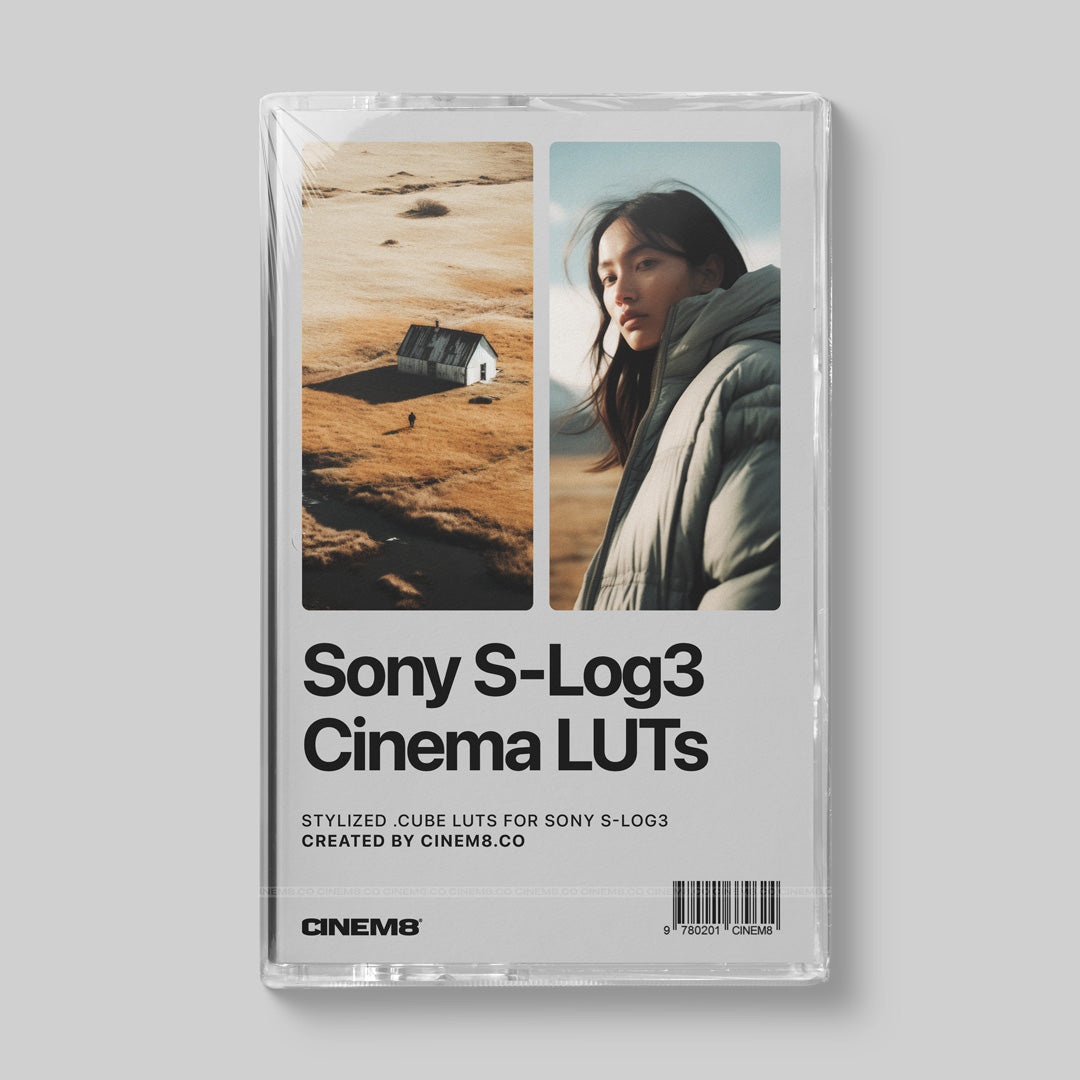
Our iPhone LUT Collection includes Apple Log conversion LUTs designed specifically for iPhone Log footage. No Rec 709 conversion needed before. It includes stylized, cinematic LUTs for both Apple Log and Rec 709 (just in case you are shooting on an older iPhone without the Log capability).
Color grading Apple Log in Final Cut Pro
When you import Apple Log footage into Final Cut Pro, it will look normal at first. That is because Final Cut automatically applies a camera LUT. You need to turn that off first.
Open the Inspector, go to Settings, find Camera LUT and disable it. Now you see the true flat log image. From here, add a Custom LUT effect or apply your conversion LUT.

Want more control than a LUT?
LUTs are a great starting point. But if you want real creative control over your film look, including film grain, halation and bloom, you need something more powerful.
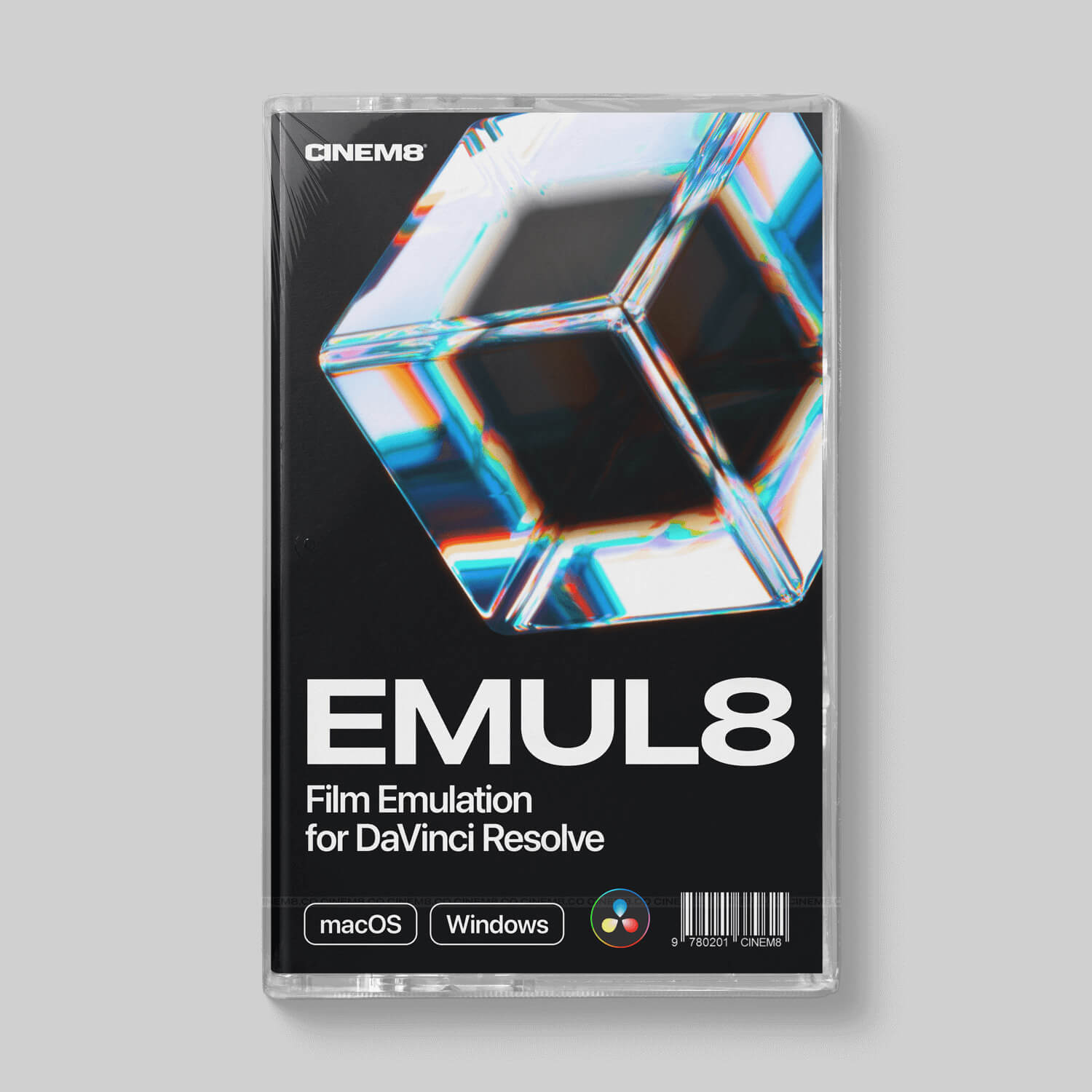
EMUL8 is our film emulation plugin for Final Cut Pro and DaVinci Resolve. It supports Apple Log and Apple Log 2 natively (along with any other camera profile) and lets you apply cinematic film looks with full optical effects on top. Way beyond what a LUT alone can do. This is the way to take full control in post over your iPhone footage.