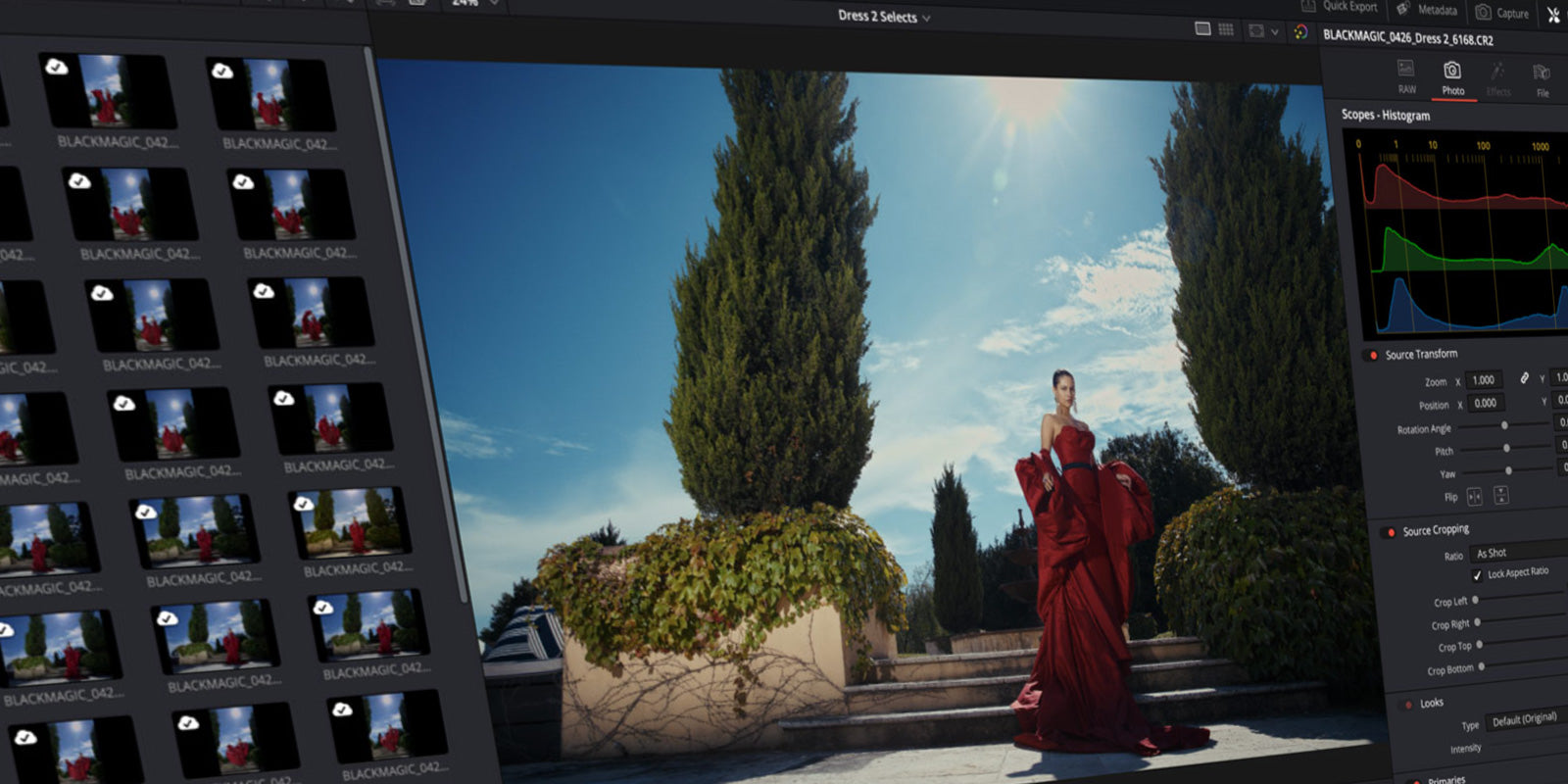
If you've ever looked at a shot you filmed and thought "it looks fine, but it doesn't feel like anything" you're not imagining it. Digital footage is technically clean. And that's exactly the problem with modern cameras. They produce clinical perfect videos.
Film emulation is what changes that. Not a color grade. Not a LUT. Something deeper than both. Let's talk about what it actually is, how it works inside Final Cut Pro and which plugin is worth your money.

What film emulation actually does to your image
Most people think film emulation is just a fancy color grade or slapping a LUT on top of your footage. It's not.
A color grade adjusts exposure, contrast, color. It can make your footage look warmer or cooler. It can crush blacks and boost contrast. But it doesn't change the fundamental character of how the image was captured. It's still digital underneath.
Film emulation goes further. Real emulation models the physical properties of analog film stock: how grain distributes across different luminance values, how highlights bleed into surrounding areas (that's bloom and partly halation), and how the emulsion responds to exposure differently than a digital sensor does. You can't create this by slapping something onto the image, you need to figure out clever ways to emulate these behaviours whilst making sure you don't create a huge performance impact.
The result is footage that doesn't just look different. It feels different.

Why a LUT alone won't get you there
A 3D LUT is a static lookup table. You feed it a color value, it spits out a different color value. Every time. Regardless of context.
That works fine in controlled situations. But the moment your exposure shifts slightly, or your lighting changes between shots, or you cut from one camera to another – the LUT reacts differently to each one. You spend the next hour trying to match clips that were never going to match with a LUT alone (And too many LUTs out there are not even matched to your color space, camera or color gamut).
LUTs also can't give you halation, bloom, chromatic aberration and film grain and it can't change over time which are some of the characteristics making film look alive. They're a static transformation of color. Film emulation is a simulation of film color relative to exposure and all the texture (bloom, grain, halation etc.) we just discussed.
This is the gap. And it's why a proper film emulation plugin changes how your videos will look.

What Final Cut Pro users need specifically
FCP users chose this editor for a reason: it's fast, it's intuitive and it doesn't get in the way. For me (Christian Maté Grab) even though I worked on professional video projects for brands like Canon, DJI, LG, Musicbed and others over the last 9 years: Davinci Resolve simply was never an option. Because it's too complex for my already cluttered brain. And I know that many of you out there also don't like to overcomplicate things. That philosophy has to extend to the plugins you use with it.
A film emulation plugin for Final Cut Pro needs to feel native. That means drag-and-drop in the Effects browser, adjustments in the Inspector panel and real-time playback on your timeline without dropping frames or forcing proxy workflows. If a plugin requires you to render before you can see results, it breaks the entire reason you're in FCP in the first place.
It also needs to address Final Cut Pro's limitations when it comes to color and color management. That means transforming your footage to a working color space so everything can come together cohesively, no matter how many different cameras you're using and how different they look from each other.
The main film emulation options: an honest comparison
Here's a straightforward breakdown of the most relevant tools out there right now. Some are built for Final Cut Pro. Some aren't. The price differences are significant and worth understanding before you spend anything.
Dehancer Pro
Dehancer is the most technically comprehensive film emulation tool that actually supports Final Cut Pro. It was my first entrypoint into film emulation. It offers 60+ film profiles, detailed effects controls, print film simulation and camera profiles for most major log formats. The results can be exceptional.
But the downsides are real. At around $600 for the video plugin, it's priced for professional colorists, not independent filmmakers or creators. Performance on Apple Silicon Macs in Final Cut Pro is a consistent complaint: grain and halation together can make timelines choppy even on modern hardware (I couldn't play back my timeline smoothly on my Mac Studio M1 Ultra when I turned on halation).
You also get a lot of parameters you'll never touch on a real project. In the end I just used 20% of all features on my actual work for clients and YouTube.
FilmConvert Nitrate
FilmConvert has been around for years and has earned a solid reputation. It models specific film stocks based on actual camera sensor data, which gives its results a particular accuracy for supported cameras. However, we just don't like how it looks. Something always feels off (but that's subjective of course).
It supports Final Cut Pro and works reasonably well within FCP's workflow. The interface is clean and the price sits below Dehancer. The main limitation is that the library is somewhat dated and the plugin hasn't evolved as quickly as the cameras it's being asked to handle. Also, it's that kind of plugin that doesn't work right inside your Video Inspector (the panel on the right in FCP). Instead, it opens a separate window with a visual user interface. And that's exactly why it also can cause severe performance drops.
EMUL8 for Final Cut Pro (affordable & fast)
We built EMUL8 because we were frustrated with the other options. We used Dehancer for years. The looks are solid. But the performance hurt our actual work, the price was hard to justify and half the parameters were things we'd never use on a real project.
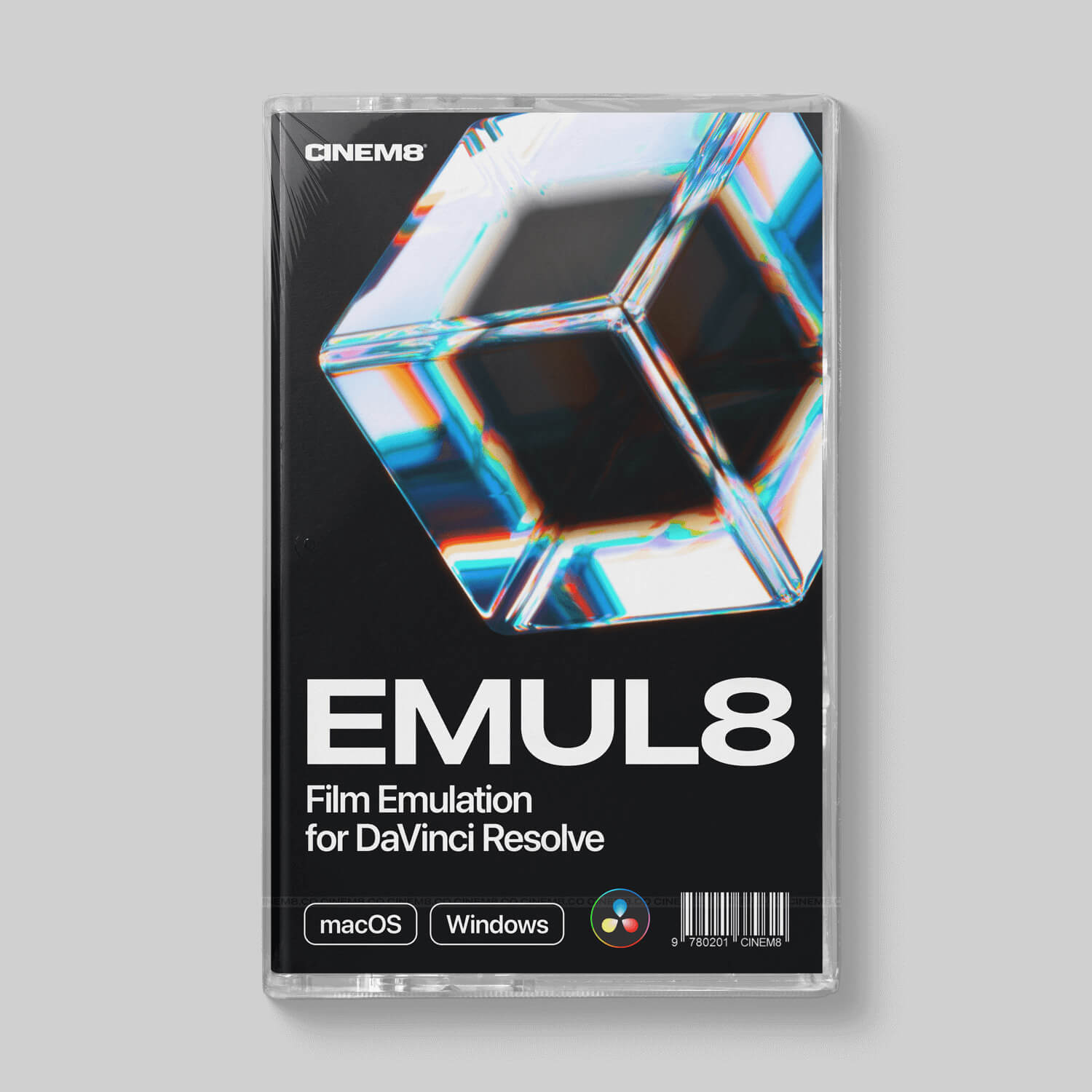
EMUL8 is built specifically for Final Cut Pro and DaVinci Resolve. It runs as a native FCP plugin with real-time playback even with grain, halation and bloom active simultaneously (if you got a Apple Silicon Mac of course, don't expext wonders if you're still on that 10 year old Intel Macbook.
It includes 17 film looks from clean and neutral to heavily pushed, plus dedicated modules for grain (8mm through 65mm), halation, bloom, chromatic aberration and the best color density control for Final Cut Pro out there. With v2.0 we also introduced the "Check Layer" which is a really fast solution to nail skintones in your edits.
One-time payment. Lifetime updates. No subscription.
The price is $179 for the FCP version (but we're often running sales so you can grab it for less than $149 at the right time). Compared to what else is out there, that math is pretty clear.
Not sure if it's right for your footage? Upload a still frame to our Film Look Tester and see the results on your actual footage before you buy anything.
Filmbox Pro (Video Village)
Filmbox is technically impressive. It was built for high-end cinema production and has been used on major films and series. The photochemical modeling is genuinely deep: 98 film stocks across seven photochemical systems, accurate grain structure, halation, gate weave, the works.
Two things are worth knowing before you get excited. First, Filmbox does not support Final Cut Pro. It runs in DaVinci Resolve, Baselight, Premiere Pro and After Effects only. Second, the price. A perpetual indie license costs $999. For studio productions, that goes up significantly. There is a simplified version called Filmbox Looks at $199 perpetual, but that's still a meaningful investment for what is, essentially, a preset-driven starting point. If you're a working colorist on commercial projects with a DaVinci suite, it makes sense. If you're a filmmaker, videographer or content creator editing in FCP, it doesn't even run.
Genesis (Procolorist)
Recently, Genesis is the most talked-about player in the film emulation space. It was built by a team that includes an Oscar-winning film chemist who spent decades at Kodak and contributed to major Hollywood productions. The science behind it is real and the pedigree is hard to argue with.
The results are genuinely impressive. The issue is that Genesis costs $1,000 for the Indie license and $2,000 for the Pro license with full stock access. For productions over $2 million in budget, the price jumps to $7,500 per seat. It also runs exclusively in DaVinci Resolve. There is no Final Cut Pro support. And there is no free trial, only a watermarked demo.
We respect what they built. But recommending a $2,000 plugin that doesn't run in Final Cut Pro to an independent filmmaker trying to get a cinematic look on a real budget... that's just feasible.

How to set up film emulation correctly in Final Cut Pro
This is where most tutorials skip the important stuff. Getting good results isn't just about which plugin you use. It's about where and how you apply it.
The effect chain order
In Final Cut Pro's Inspector, effects are applied top to bottom. This order matters enormously in general, and especially with film emulation.
The correct* order is: color space transform first, then exposure and white balance correction, then your film look, then effects like bloom, halation and film grain on top. If you apply grain before your look, it interacts with the wrong image data. If your exposure isn't corrected before the film look processes your image, the emulation cannot work properly. Remember, we talked about colors shifting in relation to exposure.
Think of it like exposing real film. You wouldn't shoot with the wrong exposure and expect the film stock to fix it. The same logic applies here. And we took care of it with EMUL8 already: You just drag & drop our "Look Development Preset" to your adjustment clip. Everything is ready to be customized in the right order.
* "correct" considering how EMUL8 is currently designed
Adjustment layer vs. clip-by-clip
The fastest approach is to apply your film look on an adjustment layer that sits above your entire timeline. This gives you one global look that processes everything underneath it consistently.
Then do your clip-by-clip exposure and white balance corrections on the individual clips below the adjustment layer. Each clip gets balanced, and then all of them pass through the film look together. Clean, fast, consistent. And most importantly: It works no matter if you shot your whole project on one camera like the Sony FX3, or you mix footage from different cameras into one timeline.

How to expose LOG footage for film emulation
This is the part that trips people up most often.
There are plenty of exposure tools and techniques out there. You might have heard of ETTR (expose to the right), using zebras at a certain value or that you should generally overexpose log footage. All of this leaves plenty of room for error, especially amongst beginners and intermediates.
With EMUL8, we wanted to change that, too! That's why we included all our Film Looks as camera monitoring LUTs. On most cameras you can simply load a LUT onto it to see how your log footage would look like when it's been graded. It's like seeing your final image already when shooting. That helps especially when you're run'n gunning like we always do.
After we created our in-camera monitoring LUTs, Eric our Co-Dev came up with a new term that replaces the old ETTR term (expose to the right):
He calls it ETLG – Expose to what looks good 😉
Because that's exactly what these monitoring LUTs do: They help you to nail exposure without looking at histograms or zebras all the time when you out there capturing a vlog or your next travel film.
But does it work with Rec.709 footage?
You don't need to shoot log for film emulation to work. Rec.709 footage will work fine, too, we even include a transformation from Rec.709 to our working color space so you can grade your Rec.709 footage exactly like your log footage. Nevertheless, the emulation still adds significant character.
Real results: what to actually expect
Film emulation won't fix footage that's badly exposed or lit. That's worth saying plainly. Colorist and Co-Creator of EMUL8, Eric Lenz, refers to this as "GIGO", which stands for "Garbage In - Garbage Out". If your shadows are crushed and your highlights are blown out, no plugin will recover information that isn't there. And if you did not focus on setdesign and good framing your videos won't look great, no matter how good your color grade is.
What film emulation does exceptionally well: it gives technically decent footage a feeling that's otherwise very hard to manufacture in post. The grain adds organic texture. The bloom and halation softens hard light sources in a way that reads as photographically real rather than digitally processed. The color science of a well-built film look handles skin tones with more grace than most manual grades do.
The best way to know what to expect on your specific footage is to test it before you buy. Our Film Look Tester lets you upload a still frame and preview all 15 EMUL8 looks directly in your browser. No download required.

Frequently asked questions
Does it work without log footage?
Yes. EMUL8 supports both log and Rec.709 color spaces. You select your camera profile in the plugin and it handles the conversion. For standard Rec.709 footage, simply select the Rec.709 setting and apply your look from there. For any other camera profile just pick the right profile from our dropdown menu.
Will it slow down my Final Cut Pro timeline?
EMUL8 is optimized for real-time playback in FCP but due to the complexity of film emulation, it still affects performance. Based on our tests, you can run film looks, grain, halation and bloom simultaneously on an M-series Mac without dropping frames in most editing scenarios. This was a core design requirement for us because laggy playback breaks creative momentum. But of course, it depends on your machine. If you still experience lags here are some tips to make it smooth again:
- Change your playback quality from "Better Quality" to "Better Performance"
- Creat optimized media when importing clips into Final Cut Pro
- Or/and use proxy media
For further details, please see our hardware requirements on the product site.
But again, how is this different from just using LUTs?
LUTs apply a static color transformation. They can't produce grain or other texture elements such as halation that reacts to actual bright areas in your frame. Or any of the other dynamic effects that make film emulation feel different from a color grade which we discussed earlier.
Does it work with my specific camera?
Yes it does. From Sony, Canon and Nikon to Fuji and even the exotic cameras like Phantom or Olympus.
Is there a trial or refund option?
We don't offer a traditional trial download. That's the trade-off we needed to do to make the plugin performant and sleek, as it's built on Motion Templates.
But our Film Look Tester lets you preview every EMUL8 look on your own footage directly in the browser.
Upload a PNG still frame from your camera, switch between looks and compare exposure modes. It's the fastest way to know if EMUL8 is right for your footage before spending anything.
Does it work on Intel Macs?
Yes, EMUL8 is compatible with macOS and works on Intel Macs running Final Cut Pro 11.1 or higher. Real-time performance is best on Apple Silicon Macs, of course.

The honest summary: which plugin is right for you
If you're a professional colorist working on commercial productions with a DaVinci Resolve suite and a budget to match, Filmbox or Genesis are pretty much the only serious options. The depth of the science is real. The price reflects that. If you're a colorist, you'll know that.
However, if you're a filmmaker, YouTube creator or independent videographer working in Final Cut Pro and you want a tool that gets you great cinematic results fast, without performance issues, without a steep learning curve and without spending $600 to $2,000 on a plugin — EMUL8 is built for exactly that workflow.
We made the tool we always wished existed when we were doing this ourselves. That's genuinely what it is.
Start with the Film Look Tester if you want to see it on your footage first. Or head to the full EMUL8 overview to see every feature in detail.
And if you're working in DaVinci Resolve instead of Final Cut Pro, we've got you covered there too. EMUL8 for DaVinci Resolve runs as lightweight DCTLs and Powergrades, designed for the same fast, clean workflow.